Introduction
Every architecture up to RA-04 assumes you deploy software by configuring servers. This one assumes you deploy it by pushing to a git branch, and that something on the platform builds a container and runs it. That is what a self-hosted platform as a service gives you: the developer experience of Heroku or Vercel, on infrastructure you control, in a jurisdiction you choose.
The architecture is the deliverable here, not the product. Several tools fill this role - Coolify, Dokploy, CapRover and others - and they share a shape: one control plane host that holds the dashboard and orchestrates, and one or more worker hosts that build and run the applications. Everything below is written against that shape. The worked examples use Coolify because it is the most widely deployed of them, but the network design, the ACLs and the two public IPs are the same whichever you pick.
What you deploy
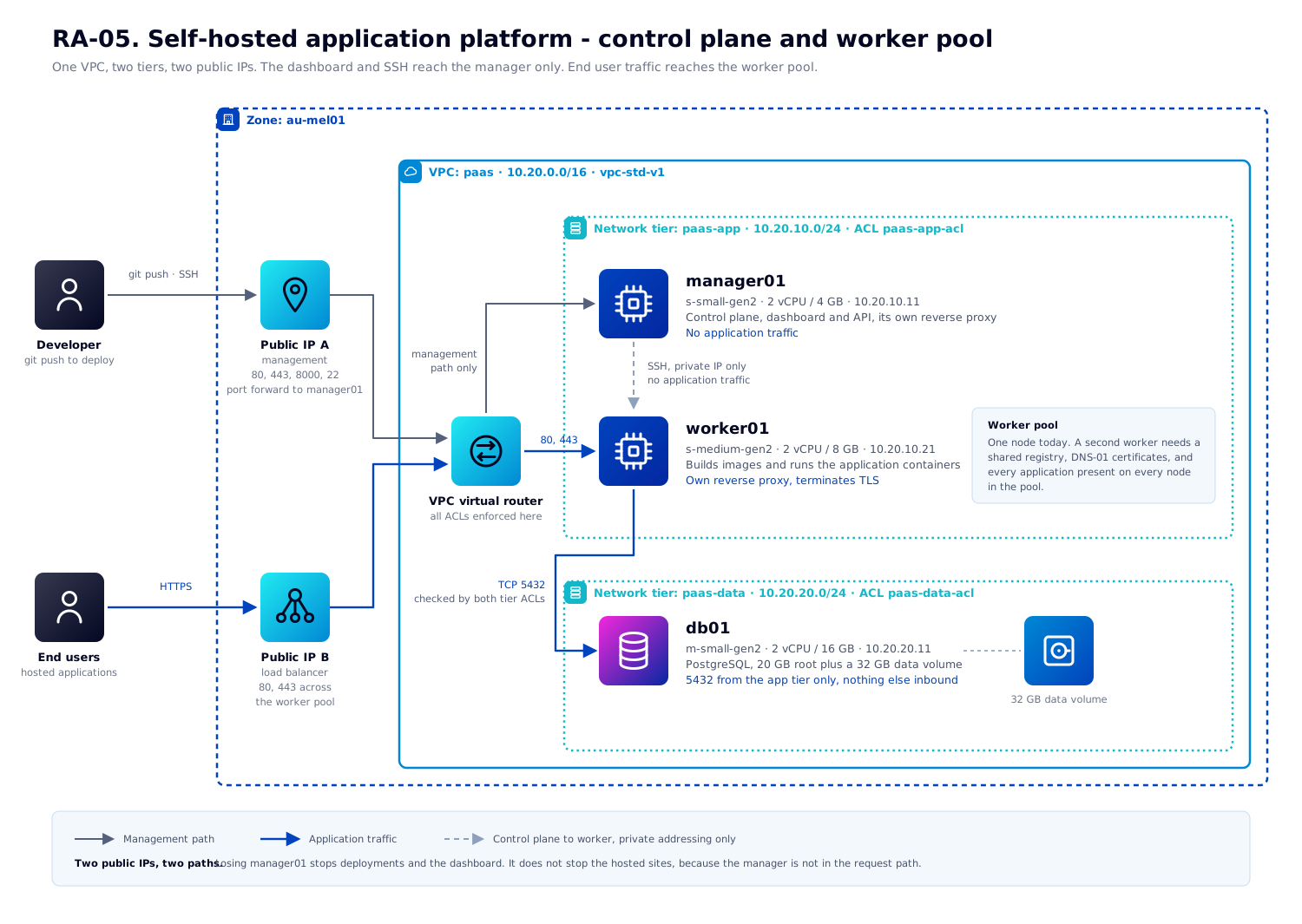
- One VPC (
paas,10.20.0.0/16) onvpc-std-v1. - Two network tiers on
net-vpctier-std-v1:paas-app(10.20.10.0/24) andpaas-data(10.20.20.0/24). - Two network ACLs, one per tier.
manager01- the control plane. Dashboard, its own database and queue, and the SSH connections that manage every other host.worker01- builds and runs the application containers, and terminates TLS for them.db01- PostgreSQL on a dedicated data volume, in its own tier.- Two public IPs: one for management, one for application traffic.
This suits a team that wants to ship without operating Kubernetes, and a hosting provider that wants to offer that as a product. If you only ever run one application and never expect to scale it, RA-03 is less machinery. If you need real scheduling and autoscaling, use Kubernetes.
Why two public IPs
In this class of platform the control plane does not proxy application traffic. Each host runs its own reverse proxy and serves the applications deployed to it directly. The manager's proxy serves the dashboard; the worker's proxy serves your applications. Both therefore want ports 80 and 443, and a layer 4 load balancer cannot tell a dashboard request from an application request, because it never sees the hostname.
So the two roles get two addresses:
| Address | Where it comes from | Mechanism | Carries |
|---|---|---|---|
| Public IP A | The VPC's source NAT address, allocated when you create the VPC | Port forwards to manager01 | Dashboard on 80/443, first-run setup on 8000, SSH on 22 |
| Public IP B | Acquired, the only one you ask for | Load balancer rule to the worker pool | Application traffic on 80 and 443 |
Two addresses in total, and only one of them is acquired. Creating the VPC already allocates a source NAT address, and that is the one the management path uses, so there is nothing to acquire for it. Every deployment method below does this: acquiring a second address for management would leave you holding three and paying for one you never use.
The manager gets port forwards because there is exactly one manager. The workers sit behind a load balancer rule because there may one day be more than one, and an LB rule takes a pool while a port forward takes a single VM. Adding a worker is then assignToLoadBalancerRule rather than a redesign of the public path.
There is a genuine benefit to this split beyond port arithmetic: the control plane is not in the request path. If manager01 is down, you cannot deploy and you cannot open the dashboard, but every running application keeps serving. That is a better failure mode than a design where the ingress and the control plane share a host.
Architecture
The management path
You reach the dashboard on public IP A. The control plane reaches every other host over SSH as root, using a key you give it. That is the whole management mechanism - there is no agent to install and no cloud API integration.
Two consequences follow. First, the SSH key held by the control plane is effectively root on the entire estate, so treat it accordingly. Second, the control plane must address its workers by their private tier addresses. See Registering workers, because getting this wrong produces a failure that looks like something else entirely.
The traffic path
Users reach public IP B. The VPC load balancer distributes to the worker pool on 80 and 443. The worker's own proxy terminates TLS and routes by hostname to the right container. The VPC router applies the paas-app ingress ACL on the way in.
Port 80 must be open to the workers even if every site redirects to HTTPS, because it carries the ACME HTTP-01 challenge that obtains the certificates.
The data path
Applications on the worker connect to db01 on 5432. That packet leaves the app subnet, crosses the VPC router and enters the data subnet, so it is filtered by two ACLs. Nothing reaches the database from the internet at all, and the database has no public IP.
Running the database on a VM rather than as a container on the platform is deliberate. It keeps the data on a volume you snapshot and back up independently, it survives a rebuild of the platform, and it means a runaway build on the worker cannot evict your database.
Resource plan
| Resource | Value | Notes |
|---|---|---|
| Zone | au-mel01 | |
| VPC offering | vpc-std-v1 | NAT, ACLs, VPN, load balancing |
| VPC CIDR | 10.20.0.0/16 | |
| Tier offering | net-vpctier-std-v1 | Both tiers |
paas-app | 10.20.10.0/24, gateway 10.20.10.1 | Control plane and workers |
paas-data | 10.20.20.0/24, gateway 10.20.20.1 | No inbound from the internet |
manager01 | s-small-gen2, 10.20.10.11 | 2 vCPU / 4 GB. Control plane only, it does not build |
worker01 | s-medium-gen2, 10.20.10.21 | 2 vCPU / 8 GB. Builds and runs applications |
db01 | m-small-gen2, 10.20.20.11 | 2 vCPU / 16 GB. Memory-optimised |
| Root disks | 64 GB on the platform hosts, 20 GB on db01 | Images and build cache accumulate on the workers |
| Data volume | 32 GB on db01 at /var/lib/postgresql | Sized to the dataset, not the host |
| Public IPs | 2 | The VPC's own source NAT address for management, plus one acquired for application traffic |
Why the worker is the larger host
It is tempting to make the control plane the big one. It is the wrong way round. These platforms build on the host the application is being deployed to, so the worker both builds and runs, and a container build is by far the heaviest thing that happens on this estate. The control plane runs a web application, a small database and a queue, and 4 GB is comfortable for it.
If builds are being killed for memory, the options are a larger worker, or a dedicated build host. Be aware that in Coolify a host marked as a build server cannot also run applications, so that route means a third VM rather than reusing the manager.
Check these against your account's resource limits before you start.
Network ACL plan
Two ACLs. Rules are numbered in bands so there is room to insert without renumbering, and egress uses a separate band from ingress because rule numbers are unique per ACL list, not per direction.
paas-app-acl
| # | Direction | Protocol | Port | Source or destination | Why |
|---|---|---|---|---|---|
| 100 | Ingress | TCP | 80 | 0.0.0.0/0 | Application traffic and the ACME HTTP-01 challenge |
| 110 | Ingress | TCP | 443 | 0.0.0.0/0 | Application traffic and the dashboard |
| 120 | Ingress | TCP | 8000 | Your admin CIDR | First-run setup only. Remove once the dashboard has its own domain |
| 130 | Ingress | TCP | 22 | Your admin CIDR | Administrative SSH |
| 140 | Ingress | TCP | 22 | 10.20.10.0/24 | Control plane to workers. Same subnet, so not actually filtered, but states the intent |
| 200 | Egress | TCP | 5432 | 10.20.20.0/24 | Applications to the database |
| 210 | Egress | TCP | 443 | 0.0.0.0/0 | Pulling base images, packages and dependencies during builds |
| 220 | Egress | TCP | 80 | 0.0.0.0/0 | Package mirrors and ACME |
| 230 | Egress | UDP | 53 | 0.0.0.0/0 | DNS |
| 240 | Egress | TCP | 53 | 0.0.0.0/0 | DNS over TCP |
| 250 | Egress | UDP | 123 | 0.0.0.0/0 | NTP. Clock skew breaks TLS validation and certificate issuance |
paas-data-acl
| # | Direction | Protocol | Port | Source or destination | Why |
|---|---|---|---|---|---|
| 100 | Ingress | TCP | 5432 | 10.20.10.0/24 | PostgreSQL from the app tier only |
| 110 | Ingress | TCP | 22 | 10.20.10.0/24 | Administrative SSH, jumping from a platform host |
| 200 | Egress | TCP | 80 | 0.0.0.0/0 | Package updates |
| 210 | Egress | TCP | 443 | 0.0.0.0/0 | Package updates |
| 220 | Egress | UDP | 53 | 0.0.0.0/0 | DNS |
| 230 | Egress | UDP | 123 | 0.0.0.0/0 | NTP |
Nothing else reaches the database tier. There is no rule permitting the internet inbound, and the database holds no public IP.
pg_hba.conf to accept connections from 10.20.10.0/24 with scram-sha-256 and nothing else. Two independent layers, because one of them will eventually be edited by someone in a hurry.Portal walkthrough
- Create the VPC. Network, VPC, Add VPC. Name
paas, CIDR10.20.0.0/16, offeringvpc-std-v1, zoneau-mel01. - Create both ACLs before the tiers. Open the VPC, Network ACL Lists, and add
paas-app-aclandpaas-data-acl. Add the rules from the plan above to each.Create the ACLs first and attach them when you create the tier. A tier created without anaclidis assigneddefault_deny, and nothing reaches it until you replace the ACL. - Create the tiers. In the VPC, Add Network.
paas-appwith gateway10.20.10.1, netmask255.255.255.0, ACLpaas-app-acl. Thenpaas-datawith gateway10.20.20.1and ACLpaas-data-acl. - Register your SSH key. Compute, SSH Key Pairs, Add. See SSH key pairs.
A public key can be registered once per account. If the same key is already registered under another name, reuse that name rather than trying to add it again, which fails with "A key pair with key ... already exists for this account".
- Deploy the three VMs per the resource plan, each on its tier with a static guest IP.
- Attach and mount the data volume on
db01before installing PostgreSQL, so the cluster is initialised on the volume rather than on the root disk. - Acquire the two public IPs. The VPC already holds a source NAT address; use that for management. Acquire one more for application traffic.
- Port forwards on the management IP to
manager01: 80, 443, 8000 and 22. - Load balancer rules on the traffic IP: 80 and 443, algorithm round robin, with
worker01assigned. - DNS. Two records. An A record for the dashboard pointing at the management IP, and a wildcard for everything else pointing at the traffic IP.
The DNS records
For a zone of example.com, a management IP of 203.0.113.10 and a traffic IP of 203.0.113.11:
| Name | Type | Value | Resolves to |
|---|---|---|---|
manager | A | 203.0.113.10 | The dashboard, on the control plane |
* | A | 203.0.113.11 | Every application, via the load balancer |
In zone file form that is:
manager.example.com.    300    IN    A    203.0.113.10
*.example.com.          300    IN    A    203.0.113.11
Most DNS interfaces want just the label rather than the full name, so you would enter manager in one record and a single * in the other.
With those two in place:
| Hostname | Answers with | Why |
|---|---|---|
manager.example.com | 203.0.113.10 | The explicit record wins over the wildcard |
www.example.com | 203.0.113.11 | Matched by the wildcard |
staging.example.com | 203.0.113.11 | Matched by the wildcard |
anything-new.example.com | 203.0.113.11 | Matched by the wildcard, with no DNS change needed |
*.example.com answers for app.example.com but not for api.app.example.com - that needs its own *.app.example.com record. And it does not cover the apex, so if you want example.com itself to serve an application, add an explicit record for it.Verify both before going further. The wildcard is best tested with a name you have not created, since anything answering proves the wildcard rather than a record you forgot about:
dig +short A manager.example.com          # expect the management IP
dig +short A does-not-exist.example.com   # expect the traffic IP
Platform installation
Worked example using Coolify. Other tools in this class install similarly.
1. Install on the control plane
ssh ubuntu@<management-ip>
curl -fsSL https://cdn.coollabs.io/coolify/install.sh -o install.sh
sudo bash install.sh
The installer brings its own Docker, database, queue and proxy. Give it a few minutes and several hundred megabytes of image pulls.
2. Create the administrator account immediately
Open http://<management-ip>:8000 and create the account straight away.
3. Give the dashboard its own domain and certificate
Settings, Instance Domain, and enter the full URL including the scheme:
https://manager.example.comThe platform then routes its own dashboard through its proxy and obtains a Let's Encrypt certificate over the HTTP-01 challenge on port 80, which is why the management IP forwards 80 as well as 443.
https:// prefix and certificate generation fails silently. The dashboard keeps working on plain HTTP and nothing reports an error.4. Close the setup port
Once the dashboard answers on its domain over HTTPS, remove ACL rule 120 and the port forward for 8000. Coolify's own documentation confirms these are unnecessary once a custom domain is in use.
Registering workers
The control plane manages workers over SSH as root. Generate a dedicated key for it rather than reusing your own:
ssh-keygen -t ed25519 -N "" -C "platform@paas" -f ./platform-keyInstall the public half in /root/.ssh/authorized_keys on each worker, ideally from cloud-init at build time, then add the private half in the dashboard under Keys and register the worker.
Before you add a second worker
The load balancer rule takes a pool, so adding a worker looks like a one-line change. It is not. Three things must be true first, and none of them are the default.
1. Every application must run on every worker
Each host's proxy knows only the applications deployed to that host, and the VPC load balancer is layer 4 - it cannot route by hostname. Round robin across two workers where an application exists on only one, and roughly half the requests reach a proxy that has never heard of the hostname and return 404.
Coolify's answer is a Servers list on the application: add both, and every redeploy, restart and stop applies to all of them.
This does scale request throughput. Two equal workers behind a round robin balancer, each running a copy of the application, serve roughly twice the requests. What it does not scale is the number of distinct applications you can host, and that is the constraint worth understanding before you plan around it.
Because every application must run on every worker in the pool, each worker carries the sum of all applications. Adding a worker replicates that set rather than dividing it, so the number of applications you can host is bounded by a single worker's memory however many workers you add. Kubernetes does the opposite: the scheduler places distinct workloads across nodes, so distinct workloads are exactly what scales.
Two consequences follow:
- The unit of scale is a whole server, not a replica. You cannot give a busy application more capacity without duplicating every other application beside it, and you cannot scale one application independently of the rest.
- Keep the pool homogeneous. A layer 4 round robin balancer gives a 2 vCPU / 4 GB worker the same share of traffic as a 2 vCPU / 16 GB one, so a mixed pool is limited by its smallest member. Equal workers, or weighted balancing if your load balancer supports it.
2. You need a container registry
The build runs on one host and the image is pushed to a registry for the others to pull. A single-worker install never needs this. Every server must also be the same CPU architecture.
3. Certificates must move to DNS-01
This is the one that surprises people. Each worker's proxy has its own ACME account and its own challenge tokens. With HTTP-01:
- Worker 1 requests a certificate and creates a challenge token.
- Let's Encrypt fetches
http://<host>/.well-known/acme-challenge/<token>. - The load balancer sends that to worker 2.
- Worker 2 has never seen the token, returns 404, validation fails.
Sticky sessions on the Load Balancer are not a solution, because Let's Encrypt validates from several network vantage points by design. Move to the DNS-01 challenge, which proves control with a _acme-challenge TXT record and never needs the inbound request. That requires an API token for your DNS provider, held on the workers - scope it to the one zone and to TXT records.
*.example.com can cover every application hostname the platform generates, instead of one certificate per application.If you find yourself doing all three, compare the effort honestly against the Kubernetes service (RA-06), which solves scheduling, shared ingress and certificate management as part of its design rather than as bolt-ons.
Deploy with CloudMonkey
Same requirements as RA-01. This script is idempotent in the parts that matter and resolves every offering by name, so it survives a zone that renames things.
#!/usr/bin/env bash
# ra05-selfhosted-paas.sh - deploy RA-05
set -euo pipefail

ZONE=au-mel01
ADMIN_CIDR=203.0.113.4/32          # your administrative source address
TEMPLATE=ubuntu-24.04
KEYPAIR=ops-key

ZONE_ID=$(cmk -o json list zones name=$ZONE | jq -r '.zone[0].id')
VPC_OFF=$(cmk -o json list vpcofferings name=vpc-std-v1 state=Enabled | jq -r '.vpcoffering[0].id')
TIER_OFF=$(cmk -o json list networkofferings name=net-vpctier-std-v1 forvpc=true state=Enabled | jq -r '.networkoffering[0].id')
TPL=$(cmk -o json list templates templatefilter=executable zoneid=$ZONE_ID name=$TEMPLATE | jq -r '.template[0].id')

# --- VPC ---
VPC_ID=$(cmk -o json create vpc name=paas displaytext=paas zoneid=$ZONE_ID \
  vpcofferingid=$VPC_OFF cidr=10.20.0.0/16 | jq -r '.vpc.id')

# --- ACLs, created BEFORE the tiers ---
# A tier created without an aclid gets default_deny and nothing reaches it.
APP_ACL=$(cmk -o json create networkacllist name=paas-app-acl vpcid=$VPC_ID \
  description="Platform hosts" | jq -r '.networkacllist.id')
DATA_ACL=$(cmk -o json create networkacllist name=paas-data-acl vpcid=$VPC_ID \
  description="Database tier" | jq -r '.networkacllist.id')

acl() {  # acl <listid> <number> <ingress|egress> <proto> <start> <end> <cidr>
  cmk create networkacl aclid="$1" number="$2" traffictype="$3" protocol="$4" \
    startport="$5" endport="$6" cidrlist="$7" action=Allow >/dev/null
}

# paas-app-acl
acl $APP_ACL 100 Ingress tcp 80   80   0.0.0.0/0
acl $APP_ACL 110 Ingress tcp 443  443  0.0.0.0/0
acl $APP_ACL 120 Ingress tcp 8000 8000 $ADMIN_CIDR     # remove after setup
acl $APP_ACL 130 Ingress tcp 22   22   $ADMIN_CIDR
acl $APP_ACL 140 Ingress tcp 22   22   10.20.10.0/24
acl $APP_ACL 200 Egress  tcp 5432 5432 10.20.20.0/24
acl $APP_ACL 210 Egress  tcp 443  443  0.0.0.0/0
acl $APP_ACL 220 Egress  tcp 80   80   0.0.0.0/0
acl $APP_ACL 230 Egress  udp 53   53   0.0.0.0/0
acl $APP_ACL 240 Egress  tcp 53   53   0.0.0.0/0
acl $APP_ACL 250 Egress  udp 123  123  0.0.0.0/0

# paas-data-acl
acl $DATA_ACL 100 Ingress tcp 5432 5432 10.20.10.0/24
acl $DATA_ACL 110 Ingress tcp 22   22   10.20.10.0/24
acl $DATA_ACL 200 Egress  tcp 80   80   0.0.0.0/0
acl $DATA_ACL 210 Egress  tcp 443  443  0.0.0.0/0
acl $DATA_ACL 220 Egress  udp 53   53   0.0.0.0/0
acl $DATA_ACL 230 Egress  udp 123  123  0.0.0.0/0

# --- Tiers, each with its ACL attached at creation ---
APP_NET=$(cmk -o json create network name=paas-app displaytext=paas-app \
  zoneid=$ZONE_ID networkofferingid=$TIER_OFF vpcid=$VPC_ID \
  gateway=10.20.10.1 netmask=255.255.255.0 aclid=$APP_ACL | jq -r '.network.id')
DATA_NET=$(cmk -o json create network name=paas-data displaytext=paas-data \
  zoneid=$ZONE_ID networkofferingid=$TIER_OFF vpcid=$VPC_ID \
  gateway=10.20.20.1 netmask=255.255.255.0 aclid=$DATA_ACL | jq -r '.network.id')

# --- VMs ---
deploy() {  # deploy <name> <offering> <netid> <ip> <rootdisk>
  cmk -o json deploy virtualmachine name="$1" displayname="$1" zoneid=$ZONE_ID \
    serviceofferingid=$(cmk -o json list serviceofferings name="$2" | jq -r '.serviceoffering[0].id') \
    templateid=$TPL networkids="$3" ipaddress="$4" keypair=$KEYPAIR \
    rootdisksize="$5" | jq -r '.virtualmachine.id'
}

MANAGER_ID=$(deploy manager01 s-small-gen2  $APP_NET  10.20.10.11 64)
WORKER_ID=$(deploy  worker01  s-medium-gen2 $APP_NET  10.20.10.21 64)
DB_ID=$(deploy      db01      m-small-gen2  $DATA_NET 10.20.20.11 20)

# --- Data volume for the database ---
CUSTOM_OFF=$(cmk -o json list diskofferings name=Custom | jq -r '.diskoffering[0].id')
VOL_ID=$(cmk -o json create volume name=db01-data zoneid=$ZONE_ID \
  diskofferingid=$CUSTOM_OFF size=32 | jq -r '.volume.id')
cmk attach volume id=$VOL_ID virtualmachineid=$DB_ID >/dev/null

# --- Public IPs ---
# The VPC already holds a source NAT address. Use it for management.
MGMT_IP_ID=$(cmk -o json list publicipaddresses vpcid=$VPC_ID listall=true \
  | jq -r '.publicipaddress[] | select(.issourcenat==true) | .id')
TRAFFIC_IP_ID=$(cmk -o json associate ipaddress vpcid=$VPC_ID zoneid=$ZONE_ID \
  | jq -r '.ipaddress.id')

# --- Port forwards: management IP to the control plane ---
pf() {  # pf <port>
  cmk create portforwardingrule ipaddressid=$MGMT_IP_ID protocol=tcp \
    publicport="$1" publicendport="$1" privateport="$1" privateendport="$1" \
    virtualmachineid=$MANAGER_ID networkid=$APP_NET openfirewall=false >/dev/null
}
pf 80     # dashboard, and the ACME challenge that gets its certificate
pf 443    # dashboard
pf 8000   # first-run setup only
pf 22     # SSH

# --- Load balancer: traffic IP to the worker pool ---
lb() {  # lb <port> <name>
  local id
  id=$(cmk -o json create loadbalancerrule name="$2" description="$2" \
    publicipid=$TRAFFIC_IP_ID networkid=$APP_NET \
    publicport="$1" privateport="$1" algorithm=roundrobin protocol=tcp \
    | jq -r '.loadbalancer.id')
  cmk assign toloadbalancerrule id="$id" virtualmachineids=$WORKER_ID >/dev/null
}
lb 80  paas-http     # required for ACME even if every site redirects to HTTPS
lb 443 paas-https

echo "Management IP: $(cmk -o json list publicipaddresses id=$MGMT_IP_ID | jq -r '.publicipaddress[0].ipaddress')"
echo "Traffic IP:    $(cmk -o json list publicipaddresses id=$TRAFFIC_IP_ID | jq -r '.publicipaddress[0].ipaddress')"
Deploy with Ansible
Same requirements as RA-01.
ngine_io.cloudstack 3.x. Every module was renamed in 3.0.0 - the cs_ prefix was dropped. Note the --upgrade flag: several distributions bundle 2.5.0, and a plain install will see it and report "Nothing to do".ansible-galaxy collection install ngine_io.cloudstack --upgrade
pip install 'cs>=3.4.0' sshpubkeys
export CLOUDSTACK_ENDPOINT=https://cloud.lightspeedhosting.com.au/client/api
export CLOUDSTACK_KEY=<api key>
export CLOUDSTACK_SECRET=<secret key>---
# ra05-selfhosted-paas.yml - deploy RA-05
- name: RA-05 self-hosted application platform
hosts: localhost
connection: local
gather_facts: false
vars:
zone: au-mel01
admin_cidr: 203.0.113.4/32
template: ubuntu-24.04
app_cidr: 10.20.10.0/24
data_cidr: 10.20.20.0/24
tiers:
- {name: paas-app, acl: paas-app-acl, gateway: 10.20.10.1}
- {name: paas-data, acl: paas-data-acl, gateway: 10.20.20.1}
instances:
# The worker is the larger host: these platforms build on the host the
# application deploys to, so it both builds and runs.
- {name: manager01, offering: s-small-gen2, tier: paas-app, ip: 10.20.10.11, disk: 64}
- {name: worker01, offering: s-medium-gen2, tier: paas-app, ip: 10.20.10.21, disk: 64}
- {name: db01, offering: m-small-gen2, tier: paas-data, ip: 10.20.20.11, disk: 20}
acl_rules:
# paas-app-acl - ingress
- {acl: paas-app-acl, n: 100, t: ingress, p: tcp, s: 80, e: 80, cidr: 0.0.0.0/0}
- {acl: paas-app-acl, n: 110, t: ingress, p: tcp, s: 443, e: 443, cidr: 0.0.0.0/0}
- {acl: paas-app-acl, n: 120, t: ingress, p: tcp, s: 8000, e: 8000, cidr: "{{ admin_cidr }}"}
- {acl: paas-app-acl, n: 130, t: ingress, p: tcp, s: 22, e: 22, cidr: "{{ admin_cidr }}"}
- {acl: paas-app-acl, n: 140, t: ingress, p: tcp, s: 22, e: 22, cidr: "{{ app_cidr }}"}
# paas-app-acl - egress. The 200 band because numbers are unique per ACL
# LIST, not per direction, and an egress rule reusing an ingress number
# silently rewrites it.
- {acl: paas-app-acl, n: 200, t: egress, p: tcp, s: 5432, e: 5432, cidr: "{{ data_cidr }}"}
- {acl: paas-app-acl, n: 210, t: egress, p: tcp, s: 443, e: 443, cidr: 0.0.0.0/0}
- {acl: paas-app-acl, n: 220, t: egress, p: tcp, s: 80, e: 80, cidr: 0.0.0.0/0}
- {acl: paas-app-acl, n: 230, t: egress, p: udp, s: 53, e: 53, cidr: 0.0.0.0/0}
- {acl: paas-app-acl, n: 240, t: egress, p: tcp, s: 53, e: 53, cidr: 0.0.0.0/0}
- {acl: paas-app-acl, n: 250, t: egress, p: udp, s: 123, e: 123, cidr: 0.0.0.0/0}
# paas-data-acl
- {acl: paas-data-acl, n: 100, t: ingress, p: tcp, s: 5432, e: 5432, cidr: "{{ app_cidr }}"}
- {acl: paas-data-acl, n: 110, t: ingress, p: tcp, s: 22, e: 22, cidr: "{{ app_cidr }}"}
- {acl: paas-data-acl, n: 200, t: egress, p: tcp, s: 80, e: 80, cidr: 0.0.0.0/0}
- {acl: paas-data-acl, n: 210, t: egress, p: tcp, s: 443, e: 443, cidr: 0.0.0.0/0}
- {acl: paas-data-acl, n: 220, t: egress, p: udp, s: 53, e: 53, cidr: 0.0.0.0/0}
- {acl: paas-data-acl, n: 230, t: egress, p: udp, s: 123, e: 123, cidr: 0.0.0.0/0}
tasks:
- name: SSH key pair
ngine_io.cloudstack.ssh_key:
name: ops-key
public_key: "{{ lookup('file', '~/.ssh/id_ed25519.pub') }}"
- name: VPC
ngine_io.cloudstack.vpc:
name: paas
cidr: 10.20.0.0/16
vpc_offering: vpc-std-v1
zone: "{{ zone }}"
register: vpc
# ACL lists first. A tier created without one gets default_deny.
- name: Network ACL lists
ngine_io.cloudstack.network_acl:
name: "{{ item.acl }}"
vpc: paas
zone: "{{ zone }}"
loop: "{{ tiers }}"
- name: Network ACL rules
ngine_io.cloudstack.network_acl_rule:
network_acl: "{{ item.acl }}"
vpc: paas
zone: "{{ zone }}"
rule_position: "{{ item.n }}"
traffic_type: "{{ item.t }}"
protocol: "{{ item.p }}"
start_port: "{{ item.s }}"
end_port: "{{ item.e }}"
cidrs: "{{ item.cidr }}"
action_policy: allow
loop: "{{ acl_rules }}"
- name: Tiers
ngine_io.cloudstack.network:
name: "{{ item.name }}"
vpc: paas
network_offering: net-vpctier-std-v1
zone: "{{ zone }}"
gateway: "{{ item.gateway }}"
netmask: 255.255.255.0
acl: "{{ item.acl }}"
loop: "{{ tiers }}"
- name: Instances
ngine_io.cloudstack.instance:
name: "{{ item.name }}"
zone: "{{ zone }}"
service_offering: "{{ item.offering }}"
template: "{{ template }}"
networks: ["{{ item.tier }}"]
ip_address: "{{ item.ip }}"
ssh_key: ops-key
root_disk_size: "{{ item.disk }}"
loop: "{{ instances }}"
- name: Data volume for the database
ngine_io.cloudstack.volume:
name: db01-data
zone: "{{ zone }}"
disk_offering: Custom
size: 32
vm: db01
state: attached
# --- Public IPs -------------------------------------------------
# TWO addresses in total, and only ONE of them is acquired here.
#
# Creating the VPC already allocated a source NAT address. That is the
# management address, so look it up rather than acquiring another. The
# ip_address module only acquires, so this uses a raw API call.
- name: Find the VPC source NAT address
ngine_io.cloudstack.api_request:
command: listPublicIpAddresses
params:
vpcid: "{{ vpc.id }}"
listall: true
register: vpc_ips
- name: Set the management address
ansible.builtin.set_fact:
mgmt_ip_address: >-
{{ (vpc_ips.result.publicipaddress
| selectattr('issourcenat', 'defined')
| selectattr('issourcenat')
| first).ipaddress }}
# The one address this playbook actually acquires.
- name: Traffic IP
ngine_io.cloudstack.ip_address:
vpc: paas
network: paas-app
zone: "{{ zone }}"
register: traffic_ip
# Management: port forwards, because there is one control plane host.
# 80 is here for the dashboard's own ACME challenge, not just redirects.
- name: Port forwards to the control plane
ngine_io.cloudstack.portforward:
ip_address: "{{ mgmt_ip_address }}"
vm: manager01
vpc: paas
network: paas-app
zone: "{{ zone }}"
protocol: tcp
public_port: "{{ item }}"
private_port: "{{ item }}"
open_firewall: false
loop: [80, 443, 8000, 22]
# Traffic: a load balancer rule, so the pool can grow later without
# redesigning the public path.
- name: Load balancer rules
ngine_io.cloudstack.lb_rule:
name: "{{ item.name }}"
description: "{{ item.desc }}"
ip_address: "{{ traffic_ip.ip_address }}"
vpc: paas
network: paas-app
zone: "{{ zone }}"
algorithm: roundrobin
protocol: tcp
public_port: "{{ item.port }}"
private_port: "{{ item.port }}"
open_firewall: false
loop:
- {name: paas-http, port: 80, desc: "Application traffic and ACME HTTP-01"}
- {name: paas-https, port: 443, desc: "Application traffic"}
# Add further workers to this list. Read "Before you add a second
# worker" first: the infrastructure change is the easy part.
- name: Assign workers to the load balancer rules
ngine_io.cloudstack.lb_rule_member:
name: "{{ item }}"
ip_address: "{{ traffic_ip.ip_address }}"
zone: "{{ zone }}"
vms:
- worker01
loop: [paas-http, paas-https]ip_address module only acquires, so the playbook uses a raw listPublicIpAddresses call to find it.Deploy with Terraform
# ra05-selfhosted-paas.tf - deploy RA-05
terraform {
  required_providers {
    cloudstack = {
      source  = "cloudstack/cloudstack"
      version = "~> 0.6.0"
    }
  }
}

variable "api_url"    { default = "https://cloud.lightspeedhosting.com.au/client/api" }
variable "api_key"    { sensitive = true }
variable "secret_key" { sensitive = true }
variable "admin_cidr" { default = "203.0.113.4/32" }

provider "cloudstack" {
  api_url    = var.api_url
  api_key    = var.api_key
  secret_key = var.secret_key
}

locals {
  zone      = "au-mel01"
  app_cidr  = "10.20.10.0/24"
  data_cidr = "10.20.20.0/24"

  instances = {
    # The worker is the larger host: it builds as well as runs.
    manager01 = { offering = "s-small-gen2",  tier = "app",  ip = "10.20.10.11", disk = 64 }
    worker01  = { offering = "s-medium-gen2", tier = "app",  ip = "10.20.10.21", disk = 64 }
    db01      = { offering = "m-small-gen2",  tier = "data", ip = "10.20.20.11", disk = 20 }
  }
}

resource "cloudstack_ssh_keypair" "ops" {
  name       = "ops-key"
  public_key = file("~/.ssh/id_ed25519.pub")
}

resource "cloudstack_vpc" "paas" {
  name         = "paas"
  display_text = "paas"
  cidr         = "10.20.0.0/16"
  vpc_offering = "vpc-std-v1"
  zone         = local.zone
}

# ACLs are declared before the tiers that reference them. A tier created
# without an ACL is assigned default_deny.
#
# 0.6.0 removed the plural `ports` list; it remains in the schema so validate
# and plan pass, and apply fails. Use singular `port`, one rule per port.
resource "cloudstack_network_acl" "app" {
  name   = "paas-app-acl"
  vpc_id = cloudstack_vpc.paas.id
}

resource "cloudstack_network_acl" "data" {
  name   = "paas-data-acl"
  vpc_id = cloudstack_vpc.paas.id
}

resource "cloudstack_network_acl_rule" "app" {
  acl_id = cloudstack_network_acl.app.id

  dynamic "rule" {
    for_each = [
      { n = 100, t = "ingress", p = "tcp", port = "80",   cidr = "0.0.0.0/0" },
      { n = 110, t = "ingress", p = "tcp", port = "443",  cidr = "0.0.0.0/0" },
      # 8000 is first-run setup only. Remove this rule once the dashboard has
      # its own domain and certificate.
      { n = 120, t = "ingress", p = "tcp", port = "8000", cidr = var.admin_cidr },
      { n = 130, t = "ingress", p = "tcp", port = "22",   cidr = var.admin_cidr },
      { n = 140, t = "ingress", p = "tcp", port = "22",   cidr = local.app_cidr },
      { n = 200, t = "egress",  p = "tcp", port = "5432", cidr = local.data_cidr },
      { n = 210, t = "egress",  p = "tcp", port = "443",  cidr = "0.0.0.0/0" },
      { n = 220, t = "egress",  p = "tcp", port = "80",   cidr = "0.0.0.0/0" },
      { n = 230, t = "egress",  p = "udp", port = "53",   cidr = "0.0.0.0/0" },
      { n = 240, t = "egress",  p = "tcp", port = "53",   cidr = "0.0.0.0/0" },
      { n = 250, t = "egress",  p = "udp", port = "123",  cidr = "0.0.0.0/0" },
    ]
    content {
      action       = "allow"
      rule_number  = rule.value.n
      traffic_type = rule.value.t
      protocol     = rule.value.p
      port         = rule.value.port
      cidr_list    = [rule.value.cidr]
    }
  }
}

resource "cloudstack_network_acl_rule" "data" {
  acl_id = cloudstack_network_acl.data.id

  dynamic "rule" {
    for_each = [
      { n = 100, t = "ingress", p = "tcp", port = "5432", cidr = local.app_cidr },
      { n = 110, t = "ingress", p = "tcp", port = "22",   cidr = local.app_cidr },
      { n = 200, t = "egress",  p = "tcp", port = "80",   cidr = "0.0.0.0/0" },
      { n = 210, t = "egress",  p = "tcp", port = "443",  cidr = "0.0.0.0/0" },
      { n = 220, t = "egress",  p = "udp", port = "53",   cidr = "0.0.0.0/0" },
      { n = 230, t = "egress",  p = "udp", port = "123",  cidr = "0.0.0.0/0" },
    ]
    content {
      action       = "allow"
      rule_number  = rule.value.n
      traffic_type = rule.value.t
      protocol     = rule.value.p
      port         = rule.value.port
      cidr_list    = [rule.value.cidr]
    }
  }
}

resource "cloudstack_network" "app" {
  name             = "paas-app"
  display_text     = "paas-app"
  cidr             = local.app_cidr
  gateway          = "10.20.10.1"
  network_offering = "net-vpctier-std-v1"
  vpc_id           = cloudstack_vpc.paas.id
  acl_id           = cloudstack_network_acl.app.id
  zone             = local.zone
}

resource "cloudstack_network" "data" {
  name             = "paas-data"
  display_text     = "paas-data"
  cidr             = local.data_cidr
  gateway          = "10.20.20.1"
  network_offering = "net-vpctier-std-v1"
  vpc_id           = cloudstack_vpc.paas.id
  acl_id           = cloudstack_network_acl.data.id
  zone             = local.zone
}

resource "cloudstack_instance" "vm" {
  for_each = local.instances

  name             = each.key
  display_name     = each.key
  service_offering = each.value.offering
  template         = "ubuntu-24.04"
  network_id       = each.value.tier == "app" ? cloudstack_network.app.id : cloudstack_network.data.id
  ip_address       = each.value.ip
  keypair          = cloudstack_ssh_keypair.ops.name
  root_disk_size   = each.value.disk
  zone             = local.zone
  expunge          = true
}

resource "cloudstack_disk" "db_data" {
  name               = "db01-data"
  attach             = true
  disk_offering      = "Custom"
  size               = 32
  virtual_machine_id = cloudstack_instance.vm["db01"].id
  zone               = local.zone
}

# --- Public IPs -------------------------------------------------------
# TWO addresses in total, and only ONE is acquired here.
#
# Creating the VPC already allocated a source NAT address, which is the
# management address. The provider has no data source for it, so pass it in as
# a variable rather than acquiring a second address and paying for three.
#
#   terraform apply -var="mgmt_ip=$(cmk -o json list publicipaddresses \
#     vpcid= listall=true | jq -r '.publicipaddress[] |
#     select(.issourcenat==true) | .ipaddress')"
variable "mgmt_ip" {
  description = "The VPC source NAT address, used for the dashboard and SSH"
  type        = string
}

# The one address Terraform acquires.
resource "cloudstack_ipaddress" "traffic" {
  vpc_id = cloudstack_vpc.paas.id
  zone   = local.zone
}

# Management: port forwards to the single control plane host.
resource "cloudstack_port_forward" "mgmt" {
  ip_address = var.mgmt_ip

  dynamic "forward" {
    # 80 is here for the dashboard's own ACME challenge, not just for redirects.
    for_each = [80, 443, 8000, 22]
    content {
      protocol           = "tcp"
      private_port       = forward.value
      public_port        = forward.value
      virtual_machine_id = cloudstack_instance.vm["manager01"].id
    }
  }
}

# Traffic: a load balancer rule per port, so the pool can grow later without
# redesigning the public path.
resource "cloudstack_loadbalancer_rule" "http" {
  name          = "paas-http"
  description   = "Application traffic and ACME HTTP-01"
  ip_address_id = cloudstack_ipaddress.traffic.id
  network_id    = cloudstack_network.app.id
  algorithm     = "roundrobin"
  protocol      = "tcp"
  public_port   = 80
  private_port  = 80
  member_ids    = [cloudstack_instance.vm["worker01"].id]
}

resource "cloudstack_loadbalancer_rule" "https" {
  name          = "paas-https"
  description   = "Application traffic"
  ip_address_id = cloudstack_ipaddress.traffic.id
  network_id    = cloudstack_network.app.id
  algorithm     = "roundrobin"
  protocol      = "tcp"
  public_port   = 443
  private_port  = 443
  member_ids    = [cloudstack_instance.vm["worker01"].id]
}

output "management_ip" { value = var.mgmt_ip }
output "traffic_ip"    { value = cloudstack_ipaddress.traffic.ip_address }
Adding a worker later is appending its id to both member_ids lists - but read Before you add a second worker first, because the infrastructure change is the easy part.
Verify
Check the paths independently. Most failures in this architecture are one path working and another not, which is exactly the case that looks fine until it doesn't.
The management path
# Dashboard, over its own domain and certificate
curl -sSI https://manager.example.com | head -1

# The certificate should be a real one, not the ACME staging issuer
echo | openssl s_client -connect <management-ip>:443 \
  -servername manager.example.com 2>/dev/null | openssl x509 -noout -issuer
Control plane to worker
The check that matters most, and the one whose failure is most misleading:
ssh ubuntu@<management-ip>
sudo ssh -i /path/to/platform-key [email protected] hostname
It must return the worker's hostname. If it hangs, the control plane is almost certainly registered against the wrong address.
The traffic path
# An application, through the load balancer
curl -sSI https://app.example.com | head -1

# Exactly one redirect from HTTP, not a loop
curl -sS -o /dev/null -w '%{http_code} redirects=%{num_redirects}\n' \
  -L http://app.example.com/
The data path, and that it is closed
# From the worker, the database should answer
ssh ubuntu@<management-ip>
sudo ssh -i /path/to/platform-key [email protected] \
  "timeout 5 bash -c '</dev/tcp/10.20.20.11/5432' && echo reachable"

# From anywhere else, it should not. Run this from your workstation.
timeout 5 bash -c '</dev/tcp/<traffic-ip>/5432' || echo "closed, as intended"Day 2 operations
- Close the setup port once the dashboard has its domain. ACL rule 120 and the port forward for 8000 exist only for first-run setup. Leaving them open leaves a plain HTTP admin interface exposed.
- The platform's SSH key is root on the whole estate. It is not an application credential. Keep it in a secret store, and remember that rotating it means updating
authorized_keyson every host and re-adding the key in the dashboard, in that order. - Watch the worker's disk. Build caches and old images accumulate on the host that builds. 64 GB goes further than you expect and then disappears suddenly. Schedule a periodic image prune and alert on disk usage before it stops builds.
- Back up the control plane's own state. It holds your application definitions, environment variables and keys in its own database. Losing it does not take the applications down, but it does mean rebuilding every definition by hand. Snapshot its root disk on a schedule.
- The database is a VM, so treat it like one. Recurring snapshots on the data volume, plus a logical dump to object storage. A snapshot is not a database backup.
- Scaling up beats scaling out here. Adding a worker brings the registry, DNS-01 and every-app-on-every-worker requirements. Resizing the existing worker brings none of them. Stop the VM and change its offering, see resizing a VM.
- Deploy the application by artifact, not by branch. If your platform rebuilds from git when promoting between environments, what reaches production is a fresh build rather than the thing you tested. Rebuilding the same commit does not reliably produce the same image. Where the platform can deploy a prebuilt image, build once in CI and promote that image between environments.
- Restrict SSH to a VPN pool. Once the VPC's VPN is configured, replace the admin CIDR in ACL rules 120 and 130 with the VPN pool and remove the administrative path from the internet entirely.